How Canary Works
Effective Date: May 27, 2026
Canary is a personal safety app that lets you designate trusted contacts — friends or family — who receive an SMS alert if you trigger an emergency or miss a scheduled safety check-in. Messages are transactional, one-to-one, and sent only when user activity requires it. Canary does not send marketing, promotional, or automated broadcast messages of any kind.
Step-by-Step Message Flow
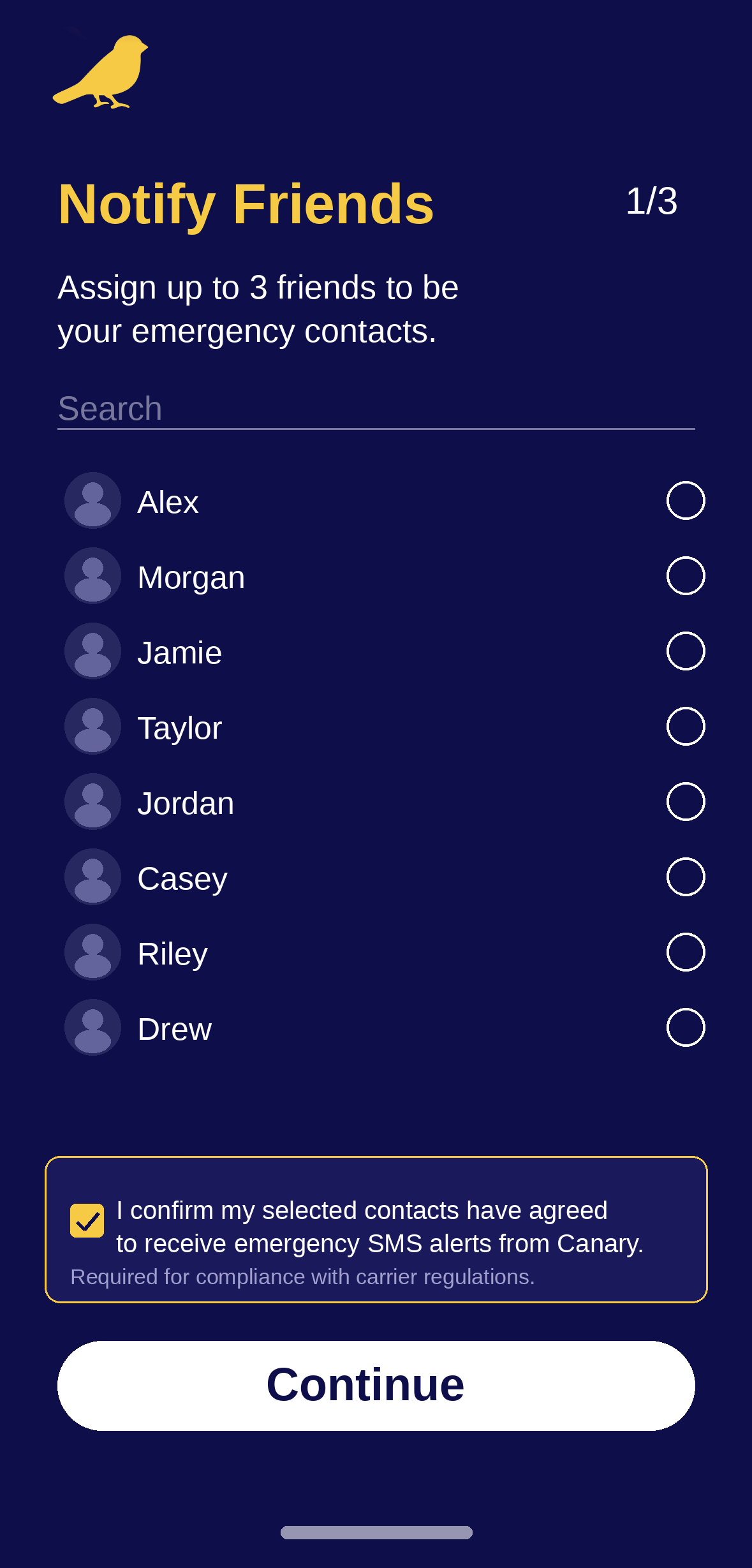
1. Setup — Adding Trusted Contacts During onboarding, you manually select up to 3 trusted contacts from your phone. Before completing setup, you are shown a confirmation prompt and required to acknowledge that each contact has agreed to receive emergency SMS alerts on your behalf. Contacts are not added without this acknowledgment.
When a new contact is added, they receive an invitation SMS and must reply YES before they are enrolled as a trusted contact:
[Name] wants to add you as a trusted contact on the Canary safety app. You’ll only be texted if they need help or miss a check-in. Reply YES to consent, or STOP to decline. Msg&data rates may apply. Learn more: https://canaryprevents.com/how-it-works
2. Safety Check-In At a scheduled time, Canary prompts you to confirm you’re safe. If you respond, no message is sent to your contacts.
Once they reply YES, they receive this confirmation: “You’re confirmed as a trusted Canary contact. You’ll only be texted if your contact needs help or misses a check-in. Reply STOP anytime to opt out.”
3. Alert Trigger If you miss a check-in or manually trigger an emergency alert, Canary sends an SMS to each of your designated trusted contacts:
Canary Alert: [Name] may need help. Check on them: https://canaryprevents.com/alert/abc123 — Reply STOP to opt out.
Messages include a link to a secure alert page with the user's last known status and, if enabled, location information.
Consent and Opt-In Process
All recipients are individually selected by the app user. The opt-in flow works as follows:
The Canary user selects a contact to invite as a trusted contact
The designated contact receives an invitation SMS explaining what Canary is and asking them to reply YES to consent, or STOP to decline
Only after the contact replies YES are they enrolled and eligible to receive future safety alerts
Recipients can opt out at any time by replying STOP
Canary does not add contacts automatically, does not send unsolicited messages, and does not use purchased or third-party contact lists.
SMS Program Details
Message type Transactional safety alerts only
Sent to User-designated trusted contacts
Trigger User action (missed check-in or manual alert)
Message frequency Varies based on user activity
Rates Message and data rates may apply
Opt out Reply STOP to any message
Help Reply HELP or email support@canaryprevents.com
Mobile number sharing We do not share, sell, or disclose mobile numbers to third parties
Example Messages
Invitation message (sent when a contact is selected):
Alex wants to add you as a trusted contact on the Canary safety app. You’ll only be texted if they need help or miss a check-in. Reply YES to consent, or STOP to decline. Msg&data rates may apply. Learn more: https://canaryprevents.com/how-it-works
Opt-in confirmation (sent after replying YES):
You’re confirmed as a trusted Canary contact. You’ll only be texted if your contact needs help or misses a check-in. Reply STOP anytime to opt out.
Alert message (sent when check-in is missed or alert is triggered):
Canary Alert: Alex may need help. Check on them: https://canaryprevents.com/alert/abc123 — Reply STOP to opt out.
Opt-out confirmation:
You have been unsubscribed from Canary alerts. You will not receive further messages. Reply START to resubscribe.
Help response:
Canary sends safety alerts only when your contact needs help. For support visit https://canaryprevents.com or email support@canaryprevents.com. Reply STOP to unsubscribe.
Privacy and Terms
Privacy Policy: https://www.canaryprevents.com/privacy-policy
Terms and Conditions: https://www.canaryprevents.com/terms